





























The issue of personal data protection has never been more relevant than it is today, yet most people still treat it far too casually.
Specialised password managers have partially helped to bring this chaos under control, but they have not changed the core of the problem: any code remains vulnerable. That is why the focus of modern security solutions has shifted from improving passwords to technologies that do not rely on them at all and use passwordless login.
What is Passkey
Passkey is a modern method of verification and authentication without passwords, based on a pair of cryptographic keys – private and public – combined with biometric confirmation.
In this article we will look at Passkey technology: how it works, what it is based on, and the advantages that make this approach more effective than traditional passwords and two-factor authentication (2FA), especially when it comes to crypto wallet security.
5 advantages of Passkey compared to passwords
-
Higher security
A passkey is created inside the device and is never transmitted over the network. The private key is not accessible even to the user, which means it cannot be stolen, copied or seen.
-
Protection against phishing
Passkey has built-in immunity to phishing because the user does not need to enter their data manually.
The browser and operating system check whether the site is genuine and, if the domain does not match, the system will not allow the key to be used in the wrong place.
-
Maximum convenience
A passkey removes everything that slows down login: passwords, SMS codes, separate apps and additional confirmations.
-
Automatic synchronisation between devices
If an Apple Passkey or another key is stored in a cloud password manager, it automatically becomes available on all devices after you sign in to your account. This eliminates the need to reconfigure access or create new keys when you change your phone.
-
No need to remember passwords
The device itself creates and stores the cryptographic key, so users no longer need to remember passwords, come up with complex combinations for every service – including crypto wallets – or worry about how to store them safely and not lose them.
How Passkey works
Passkey is based on the FIDO2 and WebAuthn standards and uses authentication built on a pair of cryptographic keys.
When a passkey is created, the user’s smartphone or computer generates two keys:
-
the private key, which is stored in a secure authenticator that no one can access;
-
the public key, which is received by the service and linked to the account.
The signature is only possible after local identity confirmation on the smartphone or computer – via Face ID, Touch ID or a PIN, which unlocks the use of the private key.
Where the keys are stored
-
Local passkeys
In this scenario, the key is stored only on a single device, for example on a phone, laptop or USB drive. The private key is not synchronised and never leaves the secure environment, which provides the highest possible level of security.
-
Synchronised passkeys
In this case, keys are stored in a cloud account – for example in an Apple ID, Google Account or password manager – and automatically become available on all trusted user devices.
You only need to create a passkey once; after that it synchronises between phones, computers and tablets and, if a device is replaced or lost, it is restored together with the account.
-
Hardware security keys
These are separate physical devices, such as YubiKey, which store the private key inside themselves and work via USB, NFC or Bluetooth. They may take the form of a USB fob, NFC tag or smart card.
Hardware keys provide the highest level of protection and are considered “the gold standard”, as they are practically impossible to hack. A physical key does not require any account or internet connection to operate.
Among the disadvantages: you must have the hardware key with you each time you log in, and losing it may block any access to your resources.
How to set up Passkey in the Trustee Plus app – instructions
For Passkey to work as a login method to Trustee Plus, it must be created once and linked in the app. After that, repeat logins will take place automatically – via biometrics or the device PIN.
How to enable Passkey:
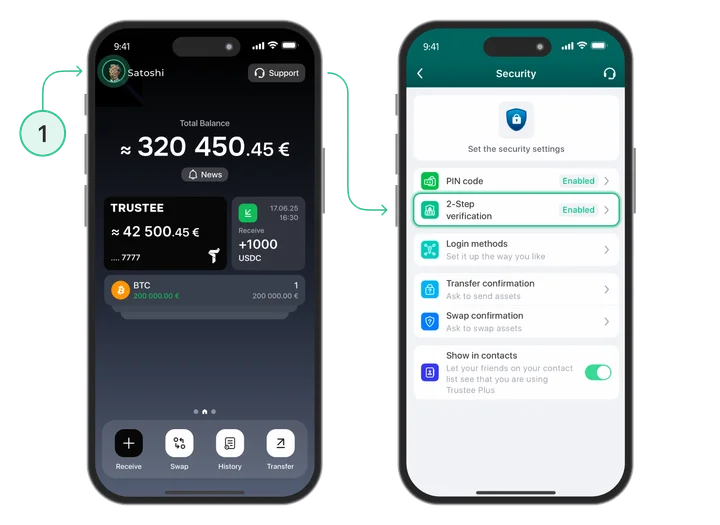
- First you need to link your email address or Google Authenticator. To do this, from the main screen of the app go to Settings, the “Security” section. Here, tap on “Two-step verification” and select the desired method.
- Then, in the “Security” section, select “Login methods”. Passkey will be the last option in the list.
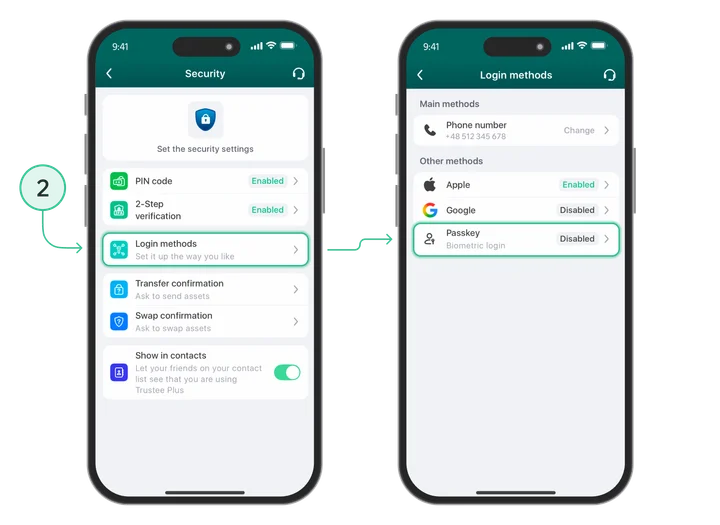
- When creating a passkey, the app will show the available options for storing the private key. From the types we described above, we will look at the configuration using the default password manager on the phone as an example.

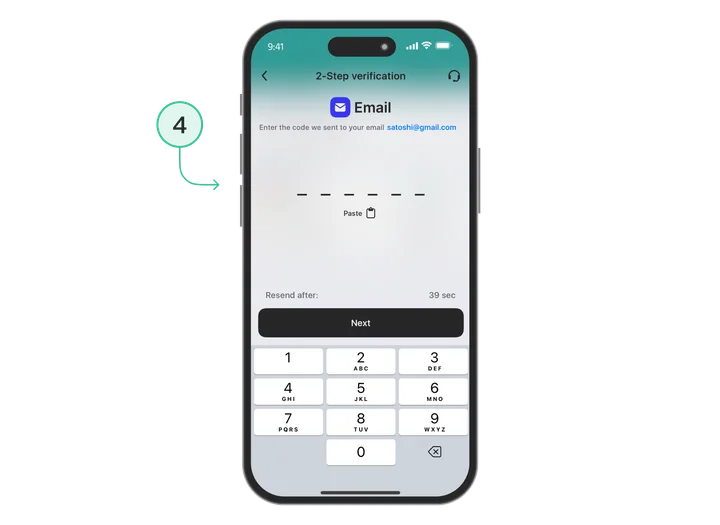
- Tap on “Passwords”, after which a page will open for entering the code that will be sent to your email. You need to enter the code and the access key will be created.
Passkey: how to use it after setup
Once configured, Passkey replaces two-factor authentication for day-to-day logins: instead of a code from Google Authenticator, the app opens via Face ID, Touch ID or a PIN.
If you select Passkey, the system will show which sources the key is available from: for example, passwords stored on the phone (Google Password Manager or iCloud Keychain), a third-party manager such as Bitwarden, or a connected physical security key.
In our example, the key is stored in the default password manager on the phone, so it is enough to confirm the action via Face ID or a PIN – and the login will be completed.
FAQ
-
Why is Passkey more secure than a regular password?
The key never exists in a form that can be intercepted or stolen, and passwordless authentication deprives an attacker of their usual target – a string of characters.
-
Does Passkey work on iPhone and Android?
Yes, Passkey on iPhone is supported via iCloud Keychain, and on Android this technology works via Google Password Manager and Chrome, where Android passkey authorisation is available.
-
What do I need to use Passkey?
You need a compatible iPhone, Android device or computer with FIDO2/WebAuthn support, biometrics or a PIN enabled to confirm actions, and a service or app where Passkey login is available.
-
What happens if I lose my phone?
If your passkey is synchronised, in the event of device loss you can restore access via the account – for example Apple ID, Google Account or another account to which the key was linked.
-
Can Passkey be hacked?
Passkey is an example of passwordless authentication – a login method without a password – which minimises the risks associated with stolen credentials.
Hacking this approach remotely is practically impossible: the private key is never transmitted over the network and is not stored on the server, so it cannot be intercepted or forged.